Planet Zoo 2 maps are selected through your game mode, location type, biome, continent and terrain options. For a new Sandbox zoo, choose Create New Zoo, select a biome and continent, then choose Flat or Sculpted terrain before creating the zoo. Wildlife Reserves have a separate location selection workflow.
If a map in a video looks different from yours, compare the full combination of biome, continent and terrain type. Selecting a familiar biome with a different continent or choosing Flat instead of Sculpted can lead you to a different landscape. Descriptive names such as a castle map or a mountain lake are not necessarily official names in the creation menu.
Choose the right kind of location first
| Your intended map | Where to start | Main choices |
|---|---|---|
| A new Sandbox zoo | Sandbox → Create New Zoo | Biome, continent, terrain and Sandbox settings |
| A new Sandbox Wildlife Reserve | Sandbox → Create New Wildlife Reserve | Reserve location, preset and ecosystem setup |
| A new Franchise zoo | Franchise, then its new-zoo creation flow | Franchise identity, biome and continent; inspect the available terrain choice |
| Another zoo in an existing network | Planet Hub → Create New Zoo | Available biome, continent and creation settings |
| An existing location | Planet Hub | Select an accessible zoo or Wildlife Reserve |
| A Career scenario | Career campaign | Choose an available scenario location |
Start with the location type rather than the landscape’s appearance. A Wildlife Reserve is a conservation environment with ecosystems, while a zoo is where you build and manage habitats and visitor facilities. A similar background does not make their setup menus interchangeable.
Create a Sandbox zoo map
- Open Sandbox.
- Choose Create New Zoo.
- Select the biome and continent.
- Give the zoo a name.
- Choose Default, Creative or Challenge, or open Sandbox Settings to adjust the available rules.
- Select Flat or Sculpted terrain.
- Review the choices, then select Create Zoo.
Treat the preset and terrain choice as separate decisions. The preset concerns how the zoo is played, including economy and animal settings. Flat or Sculpted concerns the starting landscape. Changing a challenge setting is not the way to find a missing mountain or river backdrop.
If you are trying to match a particular example, write down the biome, continent and terrain option before creating the zoo. A video title may describe the scenery informally without naming the selection combination. The combination is what you need to reproduce.
Flat and Sculpted serve different starting needs
Choose Flat when you want a broad starting surface for your own terrain work. Choose Sculpted when you want to begin with a shaped landscape and adapt your build to it. These are starting terrain choices; the game’s terrain tools can still be used to alter the landscape after you enter.
Flat does not mean every background feature is flat. Mountains or other scenery may surround the buildable area. Inspect the space you can actually develop rather than judging the map only from a distant camera angle.
Sculpted also does not mean every location has the same kind of dramatic terrain. Some options emphasize hills or valleys, while others provide a fairly practical building area with distinctive scenery around it. Rotate and zoom around the starting location before deciding where to expand.
Find recognizable Franchise landscapes
For a new Franchise, select Franchise, sign in to your Frontier account, then choose Start New Franchise +. Set its name, banner colour and sticker, then choose the new zoo’s biome, continent and name. An internet connection is required for Franchise.
For another zoo in an existing Franchise, open its Planet Hub and use Create New Zoo. Inspect the terrain setting alongside biome and continent when you are looking for a particular landscape.
The Franchise landscape combinations below were observed in ZSH Plays’ “How to find ALL Planet Zoo 2 Maps for Franchise Mode!” tutorial, checked on 20 October 2026. The scenery names are descriptive labels, not an official or complete map list.
| Landscape to look for | Biome | Continent choice | Terrain |
|---|---|---|---|
| Mountain valleys around a raised starting area | Temperate | Asia | Sculpted |
| Castle, river and bridges around a building area | Temperate | Europe | Sculpted |
| Large house and lake setting | Temperate | Americas or Oceania | Sculpted |
| City backdrop near the zoo area | Tropical | Africa, North America, South America or Oceania | Sculpted |
| Coast, beach and mountain setting | Tropical | Asia | Sculpted |
| Varied savanna terrain with waterways | Grassland | Africa | Sculpted |
| Mountain-lake setting | Taiga | An available Taiga continent | Sculpted |
| Broad central building area with mountain surroundings | Taiga | Asia, Europe or North America | Flat |
| Farmhouses and rolling terrain | Tundra | Europe | Sculpted |
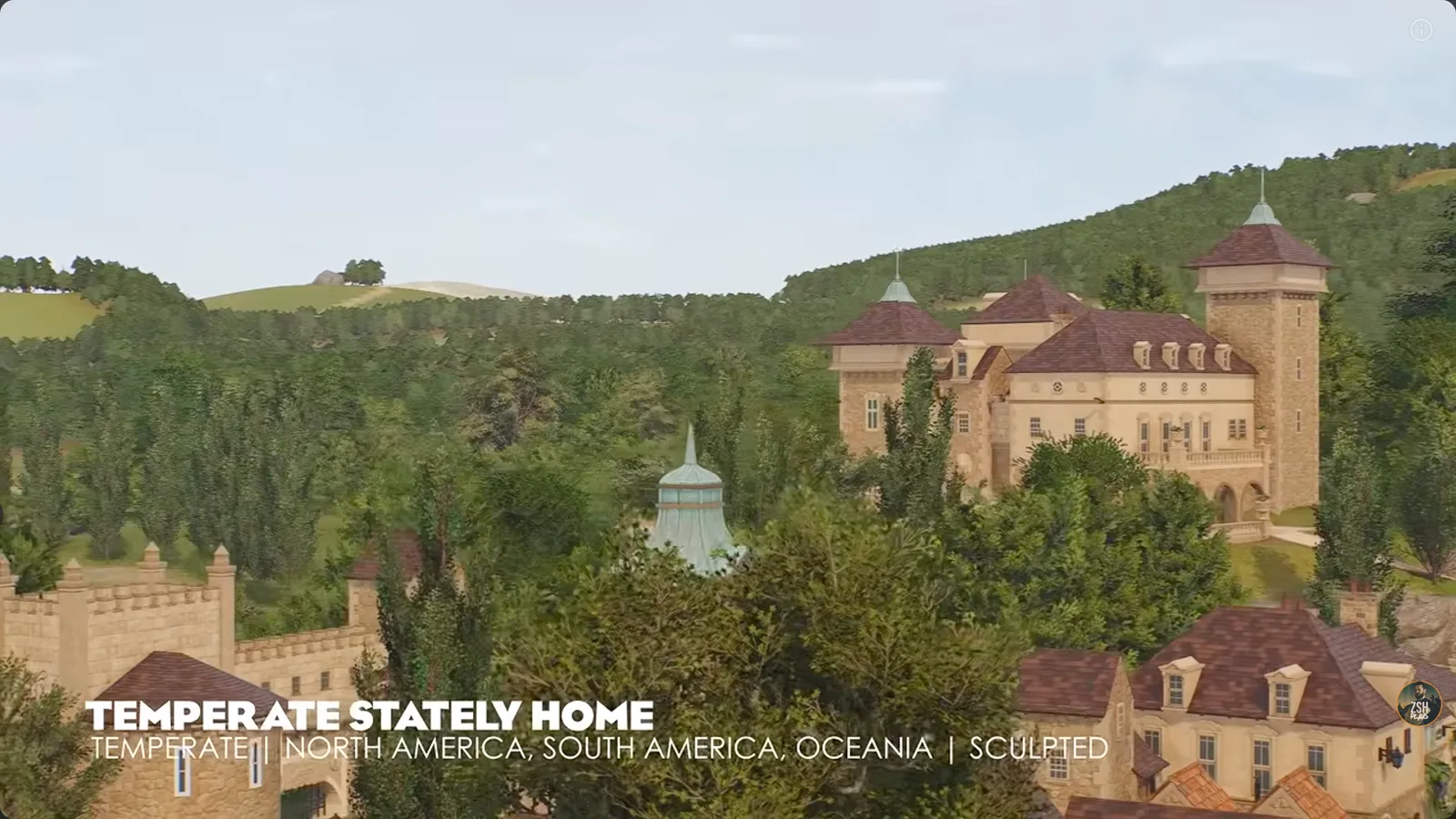
This landscape is selected through Temperate, the listed continents and Sculpted terrain; the descriptive name is not a separate search option.
Do not assume that scenery must look like your mental picture of its biome. A map reached through Tundra can look different from a featureless snowfield. Likewise, a landscape that looks European may be accessed through a different continent choice. Match the settings before deciding the map is missing.
This is a selection aid, not a claim to list every map, map variation or future addition. It does not assign unofficial landscape descriptions to Career scenario names.
Check the Taiga fix before repeating a mismatch
Update 1.0.5 addressed a problem where a Wildlife Reserve could be selected unexpectedly as the Sculpted terrain option when creating a Taiga Sandbox or Franchise map.
If Taiga creation sends you to an unexpected reserve-like result, check your installed version and repeat the intended biome, continent and terrain selection. The fix concerns that map-selection problem; it does not mean every map with a lake is the wrong location.
Create a Wildlife Reserve instead
Sandbox separates Create New Wildlife Reserve from Create New Zoo. For a reserve, choose from the available locations around the globe and give the reserve a name.
Select Default or Creative, or customize the reserve settings. You can also choose whether its ecosystems are already established when you begin. Finish with Create Wildlife Reserve.
The zoo’s Flat/Sculpted workflow is not a substitute for the reserve list. If your goal is to restore an ecosystem or prepare a release site, begin with the reserve location and its settings. If your goal is to build guest facilities around habitats, begin with a zoo.
When adding a reserve from an existing network, open the Planet Hub and choose Create New Wildlife Reserve. Select the available reserve, review its settings and create it. It will then appear with the network’s other locations.
Return to a map through the Planet Hub
Open Planet Hub with the world icon while playing. It shows your accessible zoos and Wildlife Reserves and lets you travel between them. It also contains shared research and conservation projects.
Use the Hub when you want to revisit an existing location rather than create a new one. Choose the saved zoo or reserve already listed there. Create New Zoo begins a new location; it is not the command for resuming the zoo you just left.
In Franchise, Conservation Credits are shared across its zoos, but Cash is not. Keep that distinction in mind before creating another location as part of a network. A different zoo map does not bring the cash balance of the zoo you were previously viewing.
Use Career terrain in Sandbox
Career uses scenario locations instead of letting you choose every landscape from the new-zoo biome menu. Enter an available scenario through Career and follow its objectives. Progressing the campaign and selecting a generic Sculpted biome are different routes to a map.
Career zoos can also be continued in Sandbox when the option becomes available. Update 1.0.5 corrected Terrain Only not functioning when exporting a Career scenario to Sandbox. Choose that option when your intention is to reuse the landscape rather than reproduce every part of the scenario.
Check the exported result before planning a large build around it. A terrain-only export and a full scenario continuation have different intended contents. This guide does not promise a particular medal threshold for every Career map export.
Adjust terrain after selecting the map
You can change the playable landscape after entering the zoo. Use terrain sculpting to raise, lower and smooth the ground, or use stamps for larger shapes. Terrain painting changes the surface type, while the Nature Brush places plants and rocks.
For a pond, create a depression with the terrain tools, then use Add Water and select the previewed level. The terrain tools also work beneath the water. These tools help adapt an existing map without needing to search for a different backdrop every time you want a small hill or pool.
Keep map choice separate from the detailed zoo layout. A scenic river or lake does not decide your habitat sizes, visitor routes or animal care requirements. Once the starting landscape is right, use the layout and habitat guides for those decisions.